
Bringing Nebula connectivity to everyone
A free, hosted managed lighthouse is now part of every new Managed Nebula network — sign up, enroll two machines, and they'll be instantly connected.

Nebula is the most scalable and secure way to connect machines across datacenters and the around the world. Large companies like Slack trust it with their infrastructure and home users access their 3D printers and photo backups while abroad. Because Nebula uses certificates to manage identity and includes strong encryption of transmitted packets, they can rest assured that attackers are not able to add a new machine into their private networks or read their traffic.
But what happens if an attacker gains access to a machine directly, or finds accidentally-published private key material? In those situations it’s important to be able to quickly and thoroughly cut off the host’s certificate from the Nebula network. Shutting down or deleting the host is not enough because its certificate may have been exfiltrated for use on a different machine. This is where Nebula’s blocklist feature comes in to save the day.
The blocklist is a configuration setting, pki.blocklist, which lists certificate fingerprints that should be considered invalid. This means that no new tunnels will be established with any machine using one of those certificates. When paired with another configuration flag, pki.disconnect_invalid (in Nebula 1.6.0 or higher), any existing tunnels will also be torn down once the running Nebula process is reloaded.
Example blocklist configuration:
pki: blocklist: - c99d4e650533b92061b09918e838a5a0a6aaee21eed1d12fd937682865936c72 disconnect_invalid: trueAfter the config is changed, Nebula must be reloaded for the changes to take effect. On POSIX systems, this can be done with a SIGHUP:
# Find nebula's process id (pid)ps aux | grep nebula
# Send a reload signalsudo kill -HUP <pid>
For Windows systems, nebula needs to be restarted to apply the new configuration.
The compromised certificate fingerprint should be added to the configuration of all hosts on your network and can be removed once the offending certificate expires.
Using Defined Networking to manage a Nebula network makes it easy to block a host if it is ever required. First, be sure that your hosts are running the most up-to-date version of dnclient. Then, from the details page of the host you’d like to block, click the “Block” button:
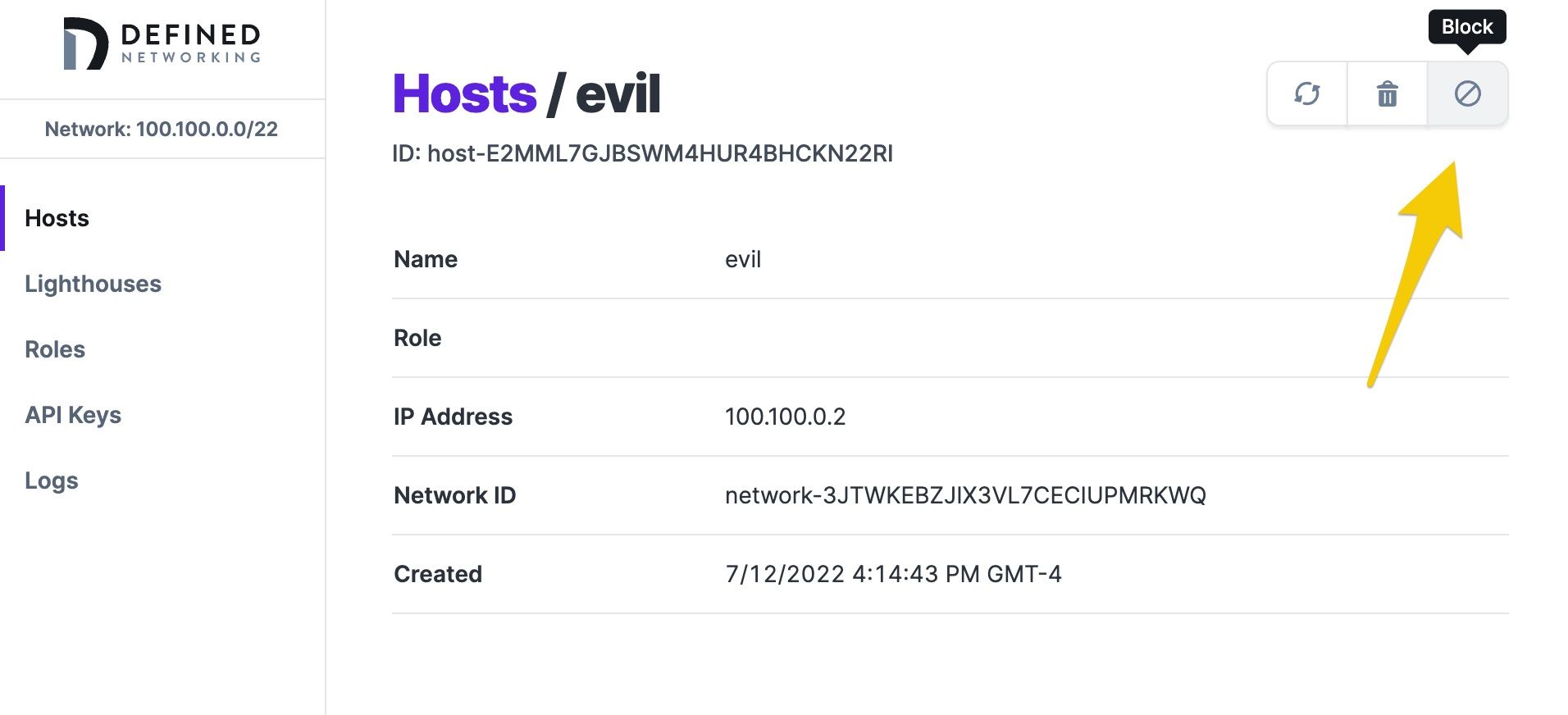
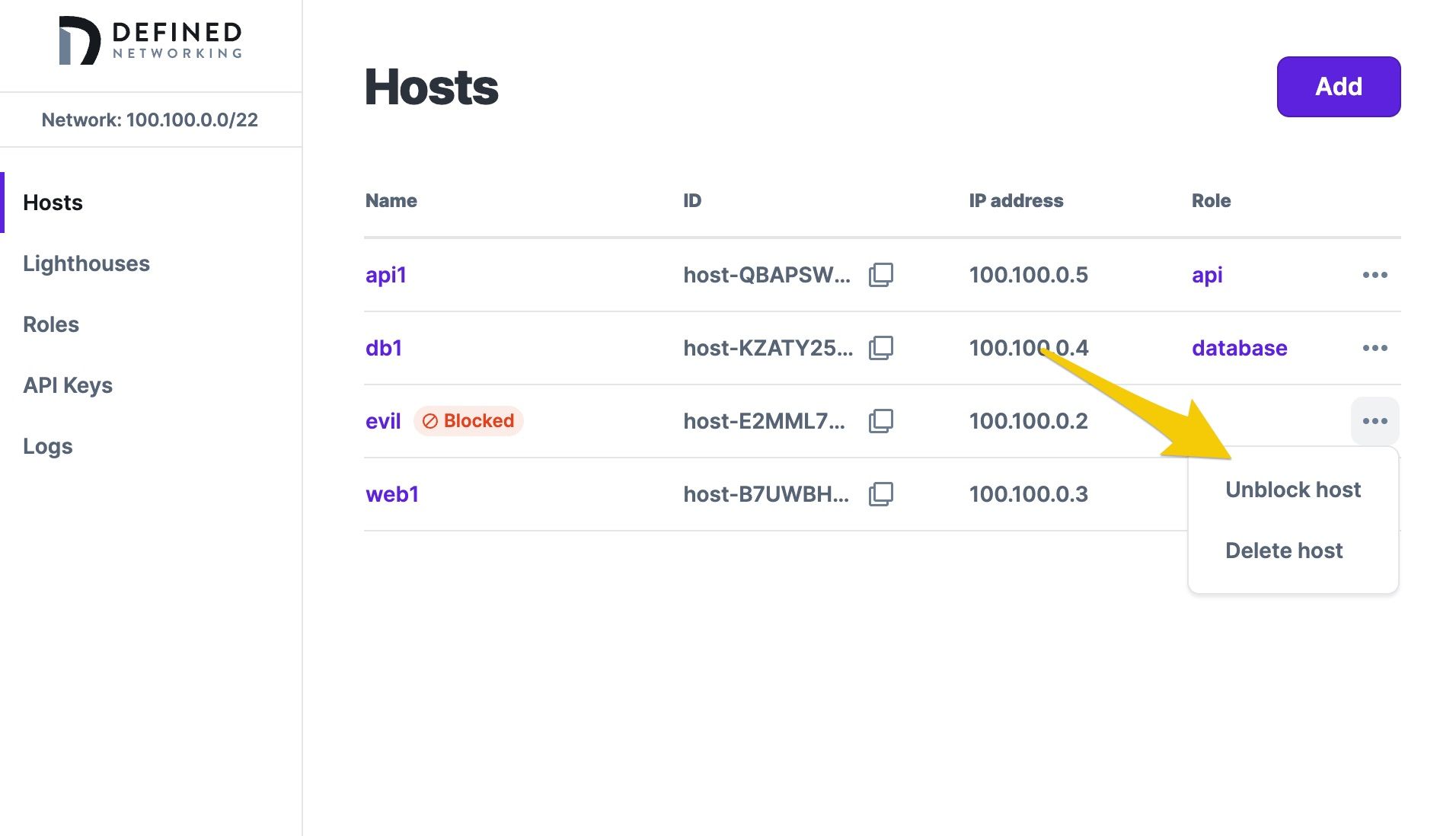
Once blocked, an update will be issued to all other hosts and lighthouses instructing them to reject any attempts to communicate with that host. POSIX and Windows systems will automatically reload when using Defined Networking without requiring a restart. Blocked hosts will be indicated in the host list and can be unblocked if desired.
Blocking a compromised host certificate is something that nobody looks forward to doing, but having the ability to react quickly and easily is crucial for effective security incident response. If you would like to join the Defined Networking beta to see how simple it can be to set up and use a Nebula network, schedule an onboarding session today.
A free, hosted managed lighthouse is now part of every new Managed Nebula network — sign up, enroll two machines, and they'll be instantly connected.
Mobile Nebula v0.10.0 brings Always On support, custom DNS resolvers, full config imports, and inbound firewall rules to Android and iOS.
Nebula v1.10.0 is here with IPv6 overlay support, multiple Nebula IPs per host, a new certificate format, and more.
Connectivity that just works. Connect up to 100 devices free, no credit card required.

